Scoped MCP Servers
Scoped MCP servers are part of the DataHub Cloud Context add-on and are in Public Beta.
Overview
The default DataHub MCP endpoint exposes your full managed tool surface. Scoped MCP servers let platform admins create additional custom servers — each with its own dedicated URL — tailored for a use-case-specific AI agent or chat assistant.
For each custom MCP server you can:
- Show & Hide Tools — Determine which tools and operations are exposed to agents built on the MCP server.
- Provide Custom Server Instructions — Customize base instructions leveraged by agents using the MCP server.
- Expose Specific Data Assets & Context Documents — Provide an optional DataHub Search View that restricts search and lookups to specific data assets and context documents to separate signal from noise.
Clients connect the same way as the default server (OAuth or personal access token), but point at the scoped URL instead. See the MCP Server guide for client setup and authentication.
Prerequisites
- DataHub Cloud with the Context add-on
- Manage platform settings privilege (platform admin)
Create a Scoped MCP Server
Only users with permission to manage platform settings can create or edit MCP servers.
- Go to Settings → AI → MCP Servers.
- Confirm Enable MCP Servers is on (master switch at the top of the page).
- Click Create.
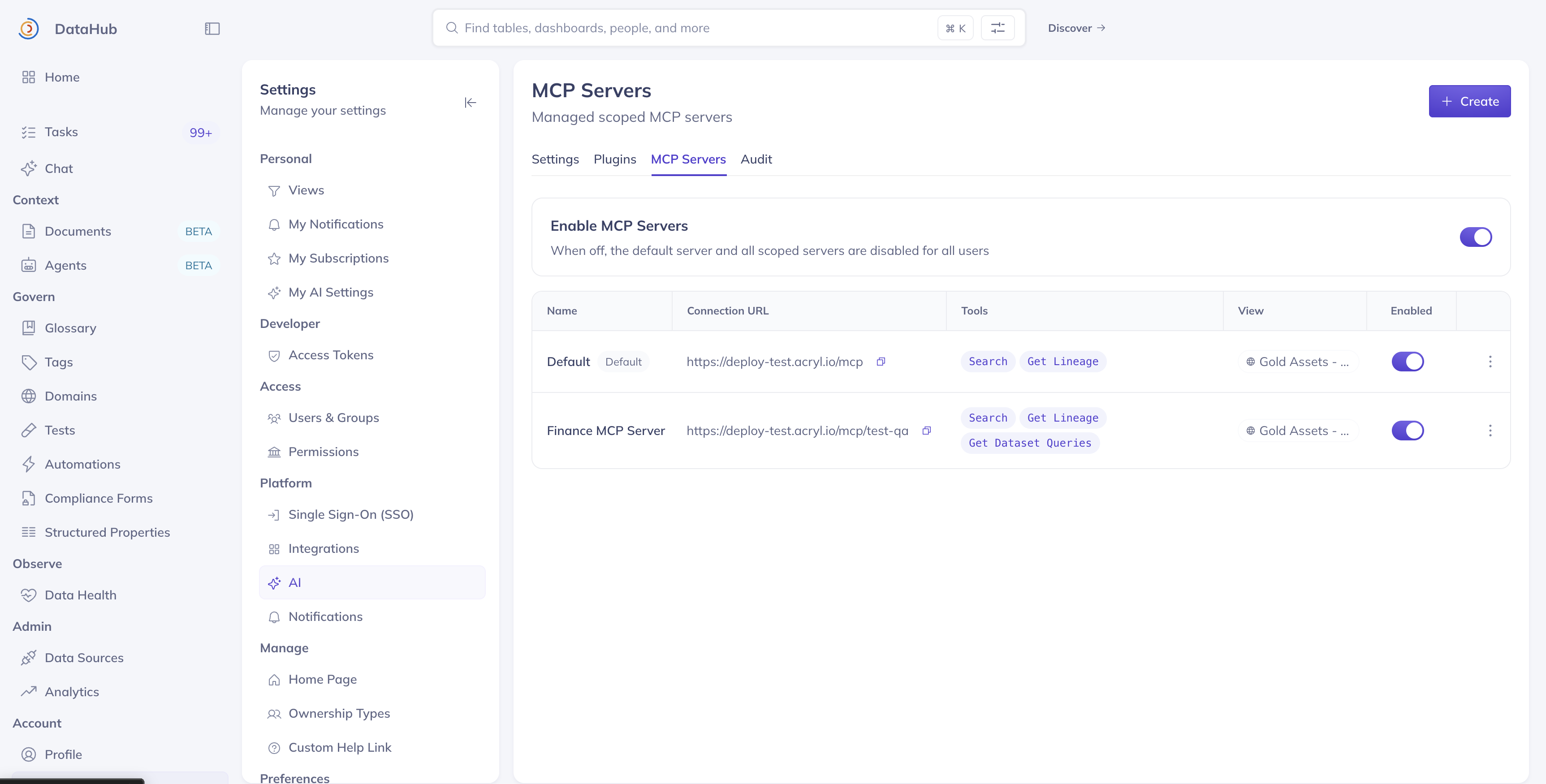
Screenshot: MCP Servers management page (default + scoped servers, master switch, and Create).
- Fill in:
- Name — Display name (for example,
Finance MCP Server) - Slug — URL-safe id used in the path (for example,
finance). Cannot be changed after creation. - Description (optional)
- Base instructions / Custom instructions — How the agent should behave for this scope
- Tools — Select tools to expose; leave empty to expose all tools
- Scope to View (optional) — Restrict search/lookups to a saved View
- Name — Display name (for example,
- Copy the Connection URL shown in the form (for example,
https://<tenant>.acryl.io/mcp/finance). - Save.
Besides the standard tools, a scoped server's Tools can include:
- Evals: tools to list, run, and report Context Evals. These are never exposed on the default server.
- Agents: see below.
Expose a DataHub Agent as a Tool
Scoped MCP servers are how you use a DataHub agent from outside DataHub. The default server doesn't expose agents, so create a scoped server and select the agent under Tools. It then appears to MCP clients as a single tool named after the agent, like ask_agent__finance-analyst. An external agent passes it a question, and the DataHub agent answers using its own instructions, scope, and plugins.
This lets you keep domain logic in DataHub, next to the evals and context that keep it honest, while your users stay in whichever tool they already use. See Build a Data Agent for when to choose this approach.
Connect a Client to a Scoped Server
Only the URL differs from the default server. Transport and auth are the same.
mcp.datahub.comhttps://mcp.datahub.com/mcp always resolves to your tenant's default server; you cannot select a scoped one through it. Use the Connection URL from Settings → AI → MCP Servers instead, for example https://<tenant>.acryl.io/mcp/finance.
Copy that URL rather than assembling it by hand, then follow the steps for your client below.
Claude (web and desktop)
- Open Customize → Connectors.
- Click +, then Add custom connector.
- Name: identify the scope, e.g.
DataHub — Finance. You may run several side by side. - Remote MCP server URL: the scoped Connection URL.
- Leave Advanced settings empty. DataHub registers the client via DCR.
- Click Add, then Connect, and sign in to DataHub.
The URL identifies the tenant, so Claude won't ask for a DataHub domain.
On Team and Enterprise, an owner adds the connector under Organization settings → Connectors; members then connect it individually from Customize → Connectors.
Claude Code
claude mcp add --transport http datahub-finance https://<tenant>.acryl.io/mcp/finance
The first tool call returns 401. Run /mcp, select the server, and choose Authenticate. Name each server distinctly (datahub-finance, datahub-sales) so they can coexist.
Cursor
Add an entry to ~/.cursor/mcp.json (global) or .cursor/mcp.json (project):
{
  "mcpServers": {
    "datahub-finance": {
      "url": "https://<tenant>.acryl.io/mcp/finance"
    }
  }
}
Save, then finish the OAuth flow in your browser.
Personal access token (service accounts, unattended agents)
For clients that can't do OAuth:
{
  "mcpServers": {
    "datahub-finance": {
      "command": "npx",
      "args": [
        "-y",
        "mcp-remote",
        "https://<tenant>.acryl.io/mcp/finance",
        "--header",
        "Authorization: Bearer <token>"
      ]
    }
  }
}
See Service Accounts for Agentic Workflows to provision the token.
Scoping Is Not Access Control
A scoped View changes what an agent surfaces by default. It does not revoke anyone's access: the same user can still query outside the scope through the default server, the UI, or the API.
If users must be prevented from reading data outside the scope, use view policies to restrict what they can see, and treat the scoped server as an ergonomics layer on top.
Handling Missing Context
Custom instructions are where you tell an agent how to behave when the tools return nothing. By default it may fall back on general knowledge; where a wrong answer is worse than no answer, say so explicitly:
You answer questions only from the finance context available through these tools. If the tools return no relevant assets, documents, or queries for a question, say that you do not have the context to answer it and suggest who to ask. Never answer from prior knowledge or infer values that the tools did not return.
This is guidance, not a guarantee. Test it with questions you expect to fall outside the scope before rolling the server out.
Edit an MCP Server
- Go to Settings → AI → MCP Servers.
- Open the server (name link) or use the row menu → Edit.
- Update name, description, instructions, tools, or View as needed. The slug (and thus the connection URL path) stays fixed.
- Save.
You can also:
- Enable or disable a server from the table without deleting it
- Edit the Default server (no slug) to change tools, instructions, or View for the shared
/mcpendpoint - Delete a scoped server — its connection URL stops working immediately
Troubleshooting
My agent can't find a table or document it should see. The server's View doesn't include it. Check that the asset is assigned to the domain (or matches the View's other filters), and that the View includes documents. Context documents follow View filters just like tables do.
The agent tool (such as ask_agent__finance-analyst) doesn't appear.
Check that the agent is selected under the server's Tools, that the server is enabled, and that your client uses the server's Connection URL. https://mcp.datahub.com/mcp always connects to your default server, never a scoped one.
The datahub-sql-workflow skill reports that SQL context tools are missing.
The server's Tools list excludes them. Leave Tools empty to include everything, or select the SQL context tools. They require the Context add-on.
The first tool call returns 401.
Your client hasn't signed in yet. In Claude Code, run /mcp, select the server, and choose Authenticate. Other clients prompt you to sign in when you connect.
A Connection URL stopped working. The server was disabled or deleted. Re-enable it, or create a new server. A server's slug, and therefore its URL, can't be changed after creation.
Next steps
- Client setup and auth: DataHub MCP Server
- Restricting what users can read: Policies